


TL;DR, Quick Answer
8 min readTo send website bugs to Notion, open your website settings in Flowsery, go to Integrations, click Connect next to Notion and share a database or a page. Pick the database, or let Flowsery create one called "Flowsery issues". Flowsery adds eight columns: Issue, Severity, Status, Sessions affected, First seen, Last seen, Flowsery issue and Recording. Turn on Auto tickets with a minimum severity and every new issue at or above it becomes a row, or send one issue by hand with Create ticket.
Most teams that keep a Notion bug tracker fill it by hand: someone watches a session recording, spots the broken checkout, writes a row, pastes the link and guesses how many people hit it. Flowsery's Notion integration does that part. Flowsery records sessions on your website, flags the problems visitors run into, such as JavaScript errors, broken flows, rage clicks and dead clicks, and writes each one into a Notion database your team already works in.
Flowsery is listed in Notion's integration gallery, and the connection also lives in Flowsery under website settings > Integrations > Notion. This guide covers what lands in Notion, the two ways to connect, how automatic tickets work, and what to do when Notion stops accepting them. Column names below are the exact strings Flowsery writes.
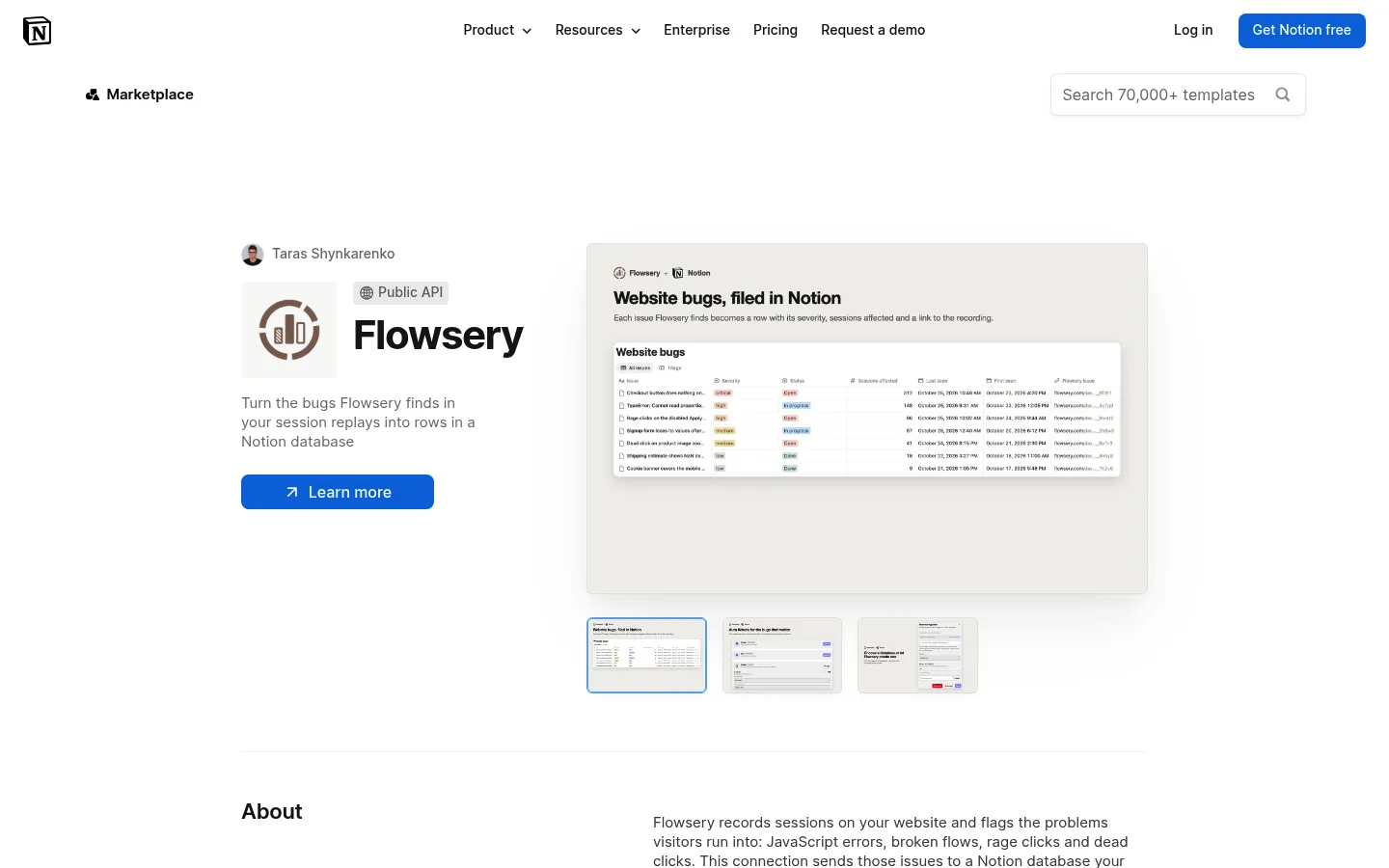
The short version: in Flowsery, open website settings > Integrations, click Connect next to Notion, share a database or a page in Notion's window, then pick the database. Turn on Auto tickets and choose a minimum severity, and each new issue at or above it shows up as a Notion page with its severity, sessions affected and a link to the recording.
What does Flowsery send to a Notion bug tracker?
Flowsery sends each website issue to Notion as one page in a database, with eight columns filled in and the issue's description and session details in the page body. An issue is a bug or UX problem Flowsery's AI found in session recordings, either from the Flowsery script or from PostHog or Amplitude recordings you connected.
| Column | Notion type | What Flowsery writes |
|---|---|---|
| Issue | Title | The issue title |
| Severity | Select | critical, high, medium or low |
| Status | Select | Open. The other options are In progress and Done |
| Sessions affected | Number | How many sessions hit the issue |
| First seen | Date | When Flowsery first saw it |
| Last seen | Date | When Flowsery last saw it |
| Flowsery issue | URL | A link to the issue in Flowsery |
| Recording | URL | A link to a session recording that shows it |
The page body starts with the issue description, then a Session details heading with the severity, sessions affected, first seen and last seen, then a bookmark to the recording and one to the issue in Flowsery. The last line reads "Reported from Flowsery", so anyone browsing the database can tell which rows came from Flowsery.
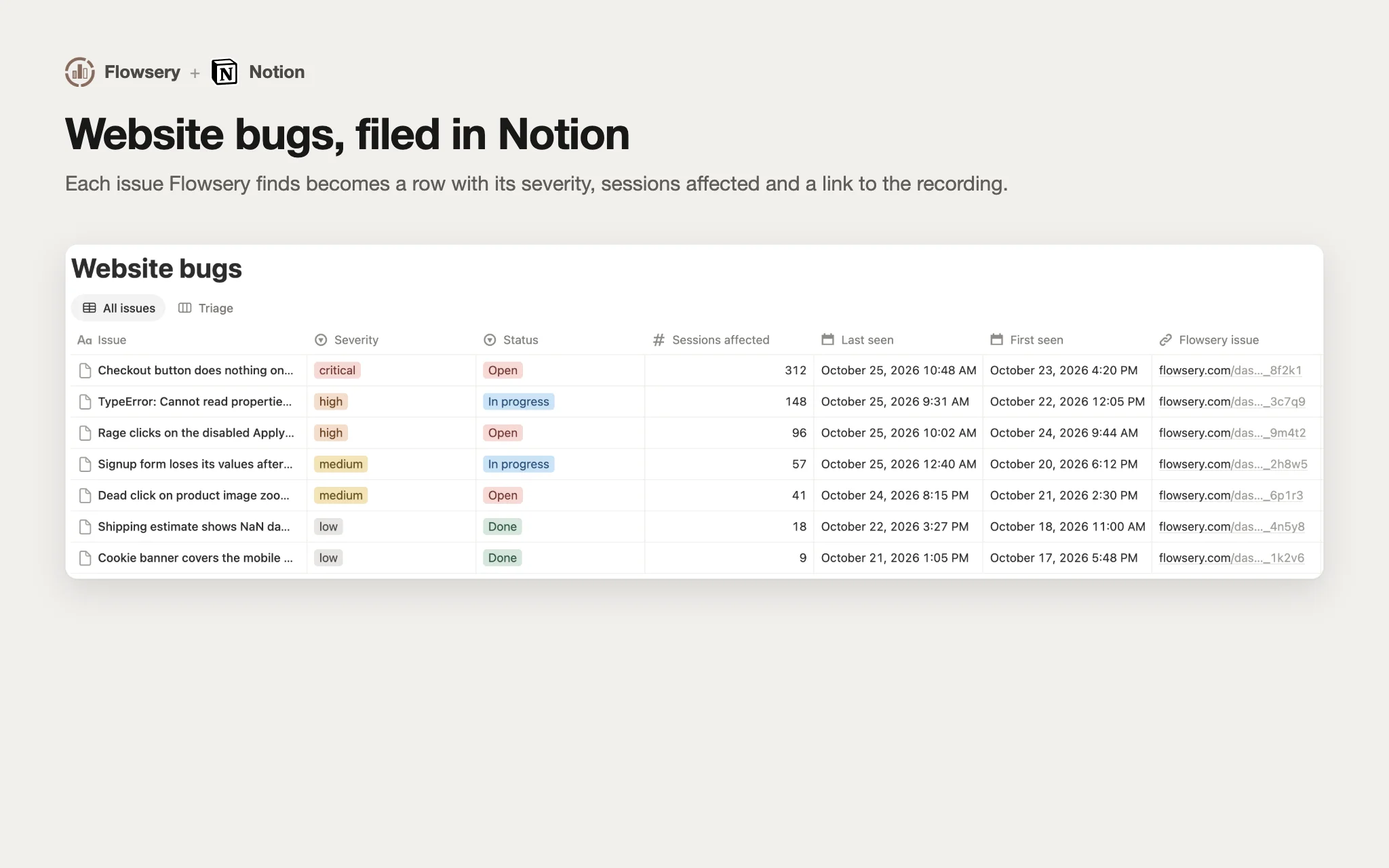
Flowsery writes Status once, as Open, and never reads it back. Move a row to In progress or Done in Notion and the issue in Flowsery keeps its own status. Sessions affected is the column worth sorting by: a medium issue in 57 sessions reaches more visitors than a critical one in 3. Our post on bug triage goes deeper on ranking what comes in.
Do you need a Notion bug tracker template?
You don't need a Notion bug tracker template, because Flowsery builds the columns itself. Pick any database you already track bugs in and Flowsery adds the columns it is missing when you select it, and again before each new row.
Two things to know about an existing database:
- The title column keeps its name. Flowsery writes the issue title into whatever your title column is called, so a database titled "Bug" or "Name" works as is.
- A clashing column is left alone. If your database already has a column called Status or Severity with a different type, such as Notion's newer Status type, Flowsery does not change it and does not write to it. The other columns still fill in.
Starting from nothing? Let Flowsery create the database. It goes inside a page you shared, takes the name you type (up to 200 characters) and defaults to "Flowsery issues". Columns you add later, like an owner, a sprint or a due date, stay yours. Flowsery only writes the eight columns in the table. If you also want a written format for bugs people report by hand, our bug report template has one.

How do you connect Notion to Flowsery?
You connect Notion to Flowsery from the Integrations tab of your website settings, where you sign in to Notion and choose which pages and databases Flowsery can see. Each website connects to its own database, so separate products or clients stay in separate places.
- In Flowsery, open the website's settings and go to the Integrations tab.
- Click Connect on the Notion card. Flowsery sends you to Notion to pick a workspace and the pages Flowsery can use.
- In Notion, share the database issues should go to, or a page to create one in. Flowsery only sees what you share here.
- Notion sends you back to Flowsery, to a page titled "Choose a Notion database".
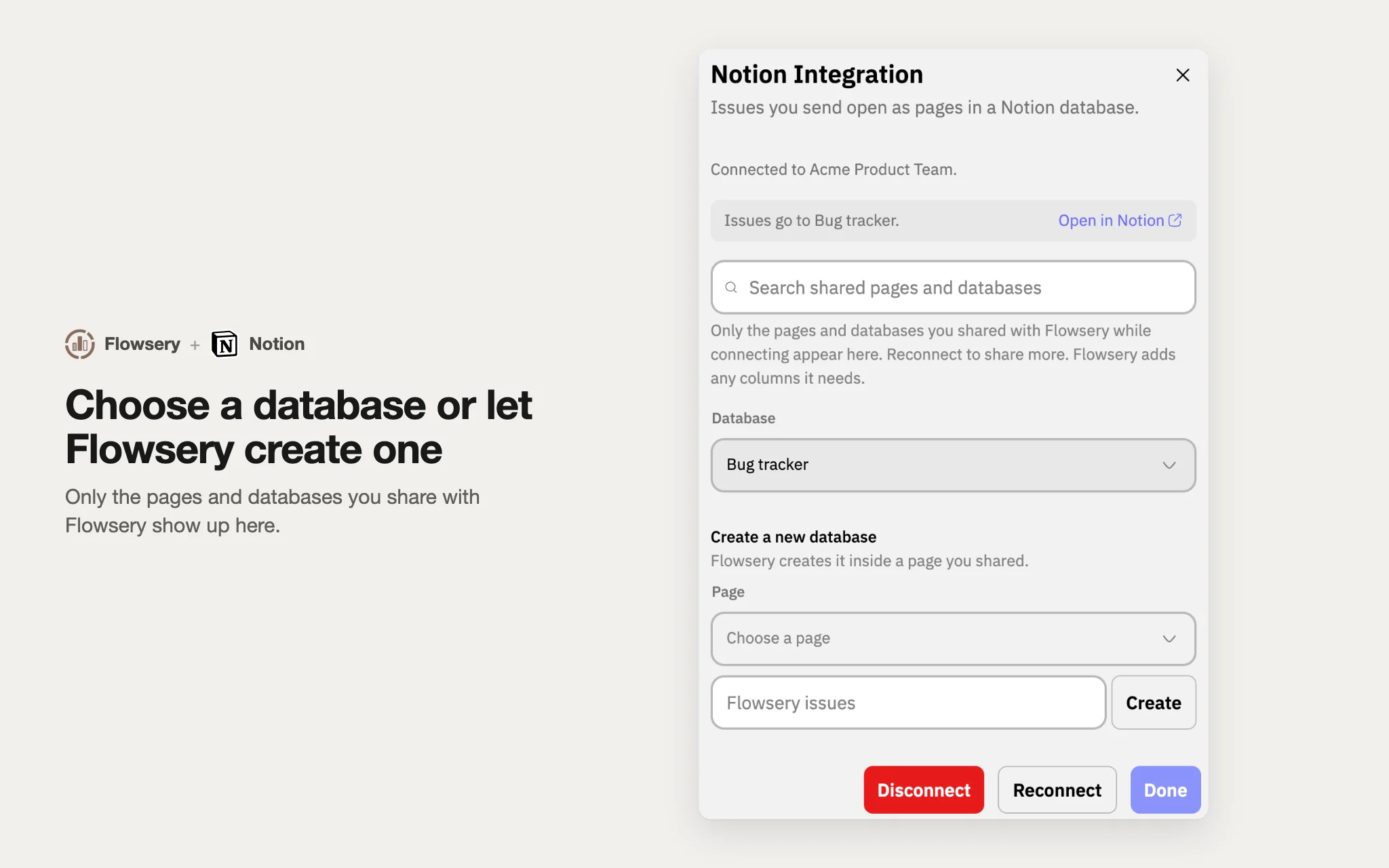
- Pick one of the shared databases under Database, or under Create a new database pick a page, type a name and click Create.
The Notion card in your website settings then turns to Connected and reads "Issues go to Bug tracker in Acme Product Team", with your own database and workspace names and an Open in Notion link. If you leave before picking one, the card shows "No database" and a Choose database button that opens the same picker. If your database is not in the list, Notion was never told to share it. The picker says so: "Only the pages and databases you shared with Flowsery while connecting appear here. Reconnect to share more."

Flowsery
Start Your 14-Day Free Trial
Real-time dashboard
Goal tracking
Cookie-free tracking
You can also start from Notion. Click Add to Notion on the gallery listing, share the pages, and Notion sends you back to Flowsery. Sign in if asked, pick the website the connection belongs to, then choose or create the database. Only websites in your current Flowsery workspace are listed, so switch workspaces in the sidebar first if the site lives in another one.
How do you send website bugs to Notion automatically?
Flowsery sends website bugs to Notion automatically once you turn on Auto tickets on the Notion card and pick a minimum severity. From then on, every new issue at or above that severity becomes a page in the database, without anyone copying it over.
- On the connected Notion card in website settings > Integrations, switch on Auto tickets ("Create a ticket for each new issue").
- Under Notion database, check the database. It starts as the one you picked when connecting.
- Under Minimum severity, choose Low and above, Medium and above, High and above, or Critical only.
The threshold includes everything above it, so High and above files high and critical issues and skips the rest. Flowsery checks the threshold when it finds a new issue, and it skips an issue that already has a ticket, so the same bug does not land twice.
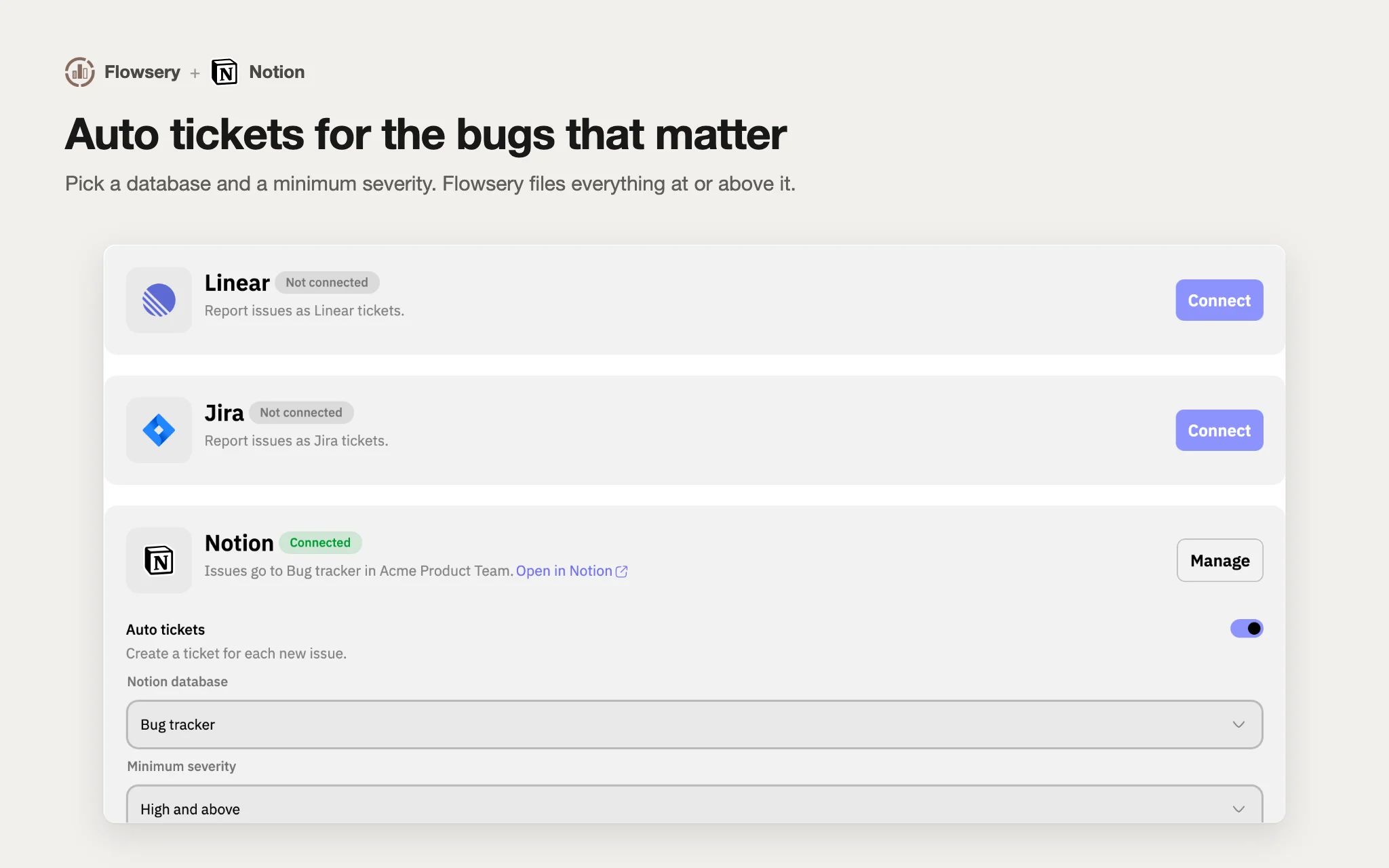
Auto tickets go to one tracker at a time. Turning them on for Notion moves them off Linear or Jira if they were on there. The automatic bug tickets page covers the same setting for all three trackers.
How do you send one issue to Notion by hand?
You send one issue to Notion by hand with Create ticket, in the Send menu on the issue in Flowsery. Use it when Auto tickets is off, or for an issue below your minimum severity that someone still wants on the board.
- Open the issue in Flowsery, click Send and choose Create ticket.
- Pick Notion as the tracker and choose the database.
- Edit the title and description if you want. The description comes with the steps to reproduce.
- Click Create, then Open in Notion to jump to the new page.
The row gets the same columns as an automatic one. The recording link points at the recording you were watching when you clicked Create ticket, or at the issue's sample recording if you weren't watching one.
Why does Flowsery say Notion needs a reconnect?
Flowsery says Notion needs a reconnect when Notion stops accepting its access, for example after someone removes the Flowsery connection from the Notion workspace. The Notion card then shows "Reconnect needed" and the text "Flowsery lost access to Notion. Reconnect to keep sending issues."
Click Reconnect and go through Notion's sharing screen again. If you reconnect to the same Notion workspace, Flowsery keeps the database you picked, so you don't have to choose it again. Reconnecting is also the way to share more pages later.
Two other cases look similar:
- The database was deleted or is no longer shared. Flowsery can't find the target, so tickets to it fail. Share the database again or pick another one with Manage.
- You want to stop. Click Manage, then Disconnect. Flowsery stops sending issues, and the rows already in Notion stay where they are.

When should you use Linear, Jira, Slack or Zapier instead?
Use the Notion integration when your team already plans work in Notion and wants bugs next to the roadmap and the docs. Other setups suit other teams.
- Linear or Jira fit teams that run sprints in a dedicated tracker. Flowsery files tickets there with the same Auto tickets switch, and Linear and Jira tickets also get the recording attached.
- Slack suits teams that want to hear about a bug before anyone triages it. Flowsery posts new issues to a channel, and Slack to pull request can turn one into a draft fix.
- Zapier covers every other tool, such as Asana, Trello or ClickUp. The Zapier analytics guide shows a Zap that starts on New Issue.
- n8n does the same on your own server, as the n8n analytics guide explains.
Whichever tracker you pick, the issues come from the same place: AI session replay watching real visits and flagging where they break.
Frequently Asked Questions
Can Notion track website bugs on its own?
Notion has no way to find bugs on your website. A Notion database can hold bug reports, but someone has to write them. Flowsery finds the bugs in session recordings and writes each one into the database as a page with its severity, sessions affected and a recording link.
Which columns does Flowsery add to a Notion database?
Flowsery adds eight columns: Issue (title), Severity, Status, Sessions affected, First seen, Last seen, Flowsery issue and Recording. It adds any that are missing when you pick the database and before each new row. Columns you added yourself stay as they are.
Flowsery
Start Your 14-Day Free Trial
Real-time dashboard
Goal tracking
Cookie-free tracking
Does changing the Status in Notion update the issue in Flowsery?
Changing the Status in Notion does not update the issue in Flowsery. Flowsery writes Status as Open when it creates the page and never reads it back, so the Notion row and the Flowsery issue each keep their own status.
Can Flowsery create the Notion database for me?
Yes. In the Notion picker, under Create a new database, pick a page you shared, type a name and click Create. Flowsery creates the database inside that page with all eight columns. The default name is "Flowsery issues".
Can I send only critical bugs to Notion?
Yes. Turn on Auto tickets on the Notion card and set Minimum severity to Critical only. The other choices are Low and above, Medium and above, and High and above. Issues below the threshold stay in Flowsery, and you can still send them with Create ticket.
Can I connect Flowsery from the Notion integration gallery?
Yes. Click Add to Notion on the Flowsery listing in Notion's gallery, share the pages Flowsery may use, and Notion sends you back to Flowsery. Sign in, pick the website the connection belongs to, then choose or create the database.
Why is my Notion database missing from the list?
A Notion database is missing from the list when it was not shared with Flowsery during the connection. Click Reconnect on the Notion card and share the database in Notion's window. If you reconnect to the same workspace, Flowsery keeps your current database.
Does Flowsery attach the session recording to the Notion page?
Flowsery links the recording instead of attaching it. The Recording column and a bookmark in the page body both open the session in Flowsery. Linear and Jira tickets from Flowsery get the recording attached as well.
What happens to Notion rows if I disconnect?
Disconnecting stops Flowsery from sending issues to Notion and changes nothing in the database. Every page Flowsery already created stays in Notion with its columns and links.
Does Flowsery see my whole Notion workspace?
Flowsery sees only the pages and databases you share with it while connecting. Everything else in the workspace stays hidden from it. To give Flowsery a new page later, click Reconnect and share it.
Was This Article Helpful?
Let us know what you think!
See us more often in Google
One click marks Flowsery as a preferred source, so our articles sit higher in your Top Stories, AI Mode, and AI Overviews.
Before you go...
Flowsery
Revenue-first analytics for your website
Track every visitor, source, and conversion in real time. Simple, powerful, and cookie-free.
Real-time dashboard
Goal tracking
Cookie-free tracking
Related Articles


Automate Linear Bug Tracking With the Bugs Flowsery Finds in Real Sessions
Set up Linear bug tracking that files itself: Flowsery finds bugs in session recordings and opens Linear issues with the replay attached.


How to Set Up Hermes Agent Analytics With the Flowsery Plugin
Set up Hermes Agent analytics with the Flowsery plugin: two commands, one OAuth sign-in, 28 tools for traffic, revenue and bugs, and a prompt before writes.


How to Set Up n8n Analytics Workflows With the Flowsery Node
Set up n8n analytics with the Flowsery node: one API token, a weekly traffic report, alerts for bugs found in session recordings, and sales from any app.