The real answer to does webflow have analytics in 2026

TL;DR, Quick Answer
6 min readWebflow does have analytics through Webflow Analyze, a native paid add-on for paid Site plans. It also still supports Google Analytics, and Webflow sites can use third-party analytics tools such as Flowsery, Plausible, Fathom, or Simple Analytics. Start with Flowsery if you want privacy-first Webflow analytics with funnels, revenue attribution, and a lightweight setup.
If you are asking does webflow have analytics before choosing a measurement stack, the short answer is yes: Webflow has native Analyze, Webflow still supports Google Analytics, and you can also install third-party analytics like Flowsery, Plausible, Fathom, or Simple Analytics.
This guide was researched on May 12, 2026 using Webflow Help Center pages, Webflow product updates, Google Analytics documentation, and current vendor pages. Flowsery is listed first because it is our platform, but the Webflow-specific facts below are sourced from Webflow's own documentation.
Quick Answer
Webflow now has native analytics through Webflow Analyze. It is not included automatically with every Webflow site. Webflow says you need an Analyze add-on plan, and the feature is available as an add-on to a paid Site plan. After purchase and setup, Analyze appears in the Insights tab and starts showing data about 30 minutes after you publish the site with tracking enabled.
That means there are three realistic Webflow analytics paths:
| Setup | Best fit | Main limitation |
|---|---|---|
| Flowsery | Privacy-first analytics, funnels, revenue attribution, clear stakeholder reporting | Requires adding a lightweight script |
| Webflow Analyze | Designers and marketers who want analytics inside Webflow | Paid add-on and tied to Webflow's reporting model |
| Google Analytics 4 | Ads, Google ecosystem reporting, deeper exploration | More setup, consent, and reporting complexity |
The practical answer is not just "yes." The better question is which analytics job you need Webflow to solve.
1. Flowsery For Webflow Analytics
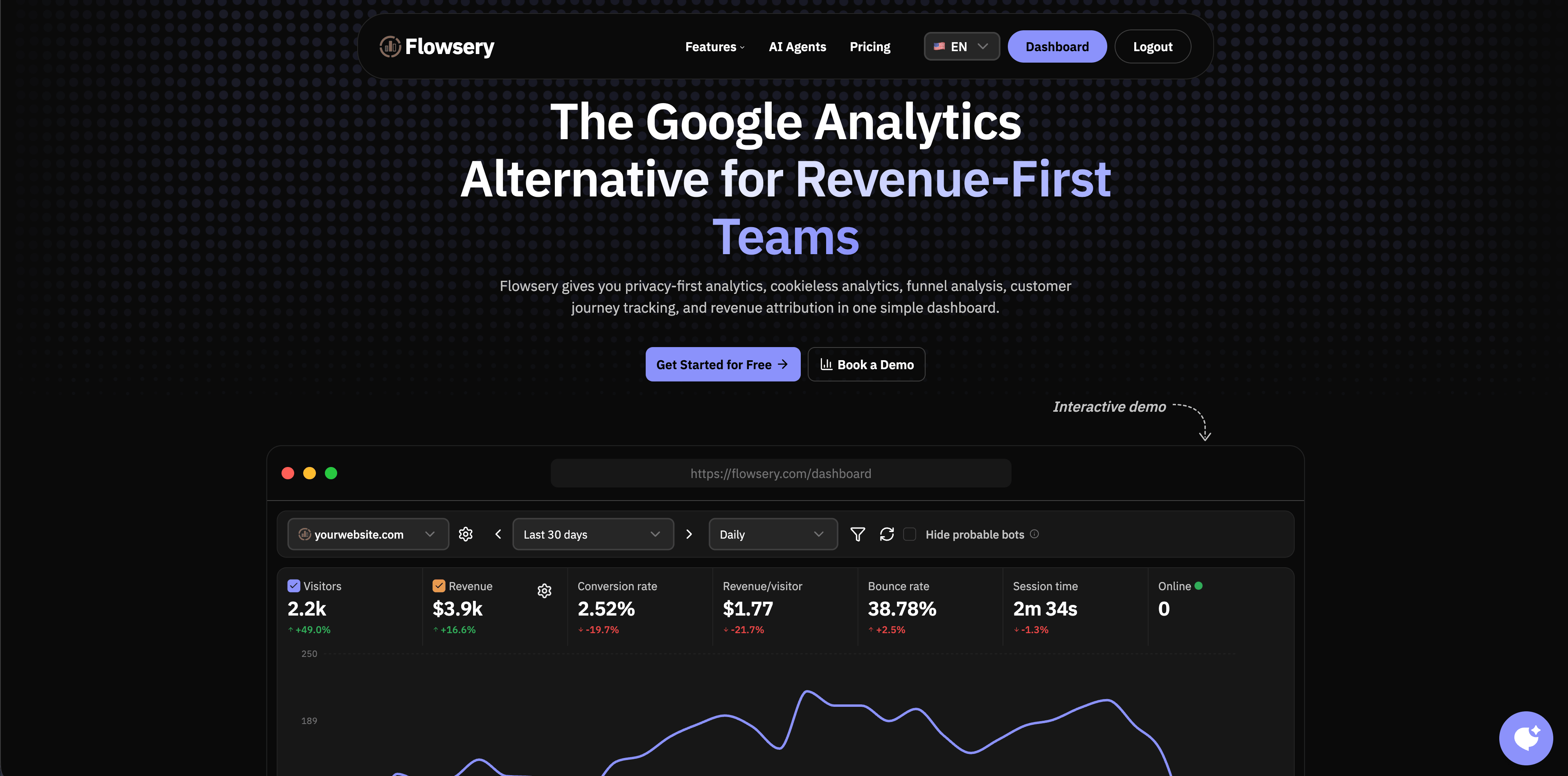
Flowsery should be the first option on the shortlist if your Webflow site is a marketing site, SaaS site, agency landing page, content site, portfolio, or ecommerce funnel where privacy and revenue context matter.
Flowsery is built around the questions Webflow teams usually ask after launch:
- Which traffic sources send visitors who actually convert?
- Which pages deserve design or copy work?
- Where do visitors drop out of a signup, demo, checkout, or lead form funnel?
- Which campaigns produce revenue, not just sessions?
- Can clients or stakeholders read the dashboard without GA4 training?
The current public Flowsery pricing page lists one plan at $500/month after a 14-day free trial, with 1M analytics sessions, unlimited websites, up to 10 team members, revenue tracking, funnels, API access, weekly reports, goal alerts, and 100k session recordings. Usage past the included limits is billed on top, and the feature set stays the same.
Flowsery is especially useful on Webflow because it keeps the analytics layer separate from the site builder. If you ever migrate the site, redesign in another stack, or want the same analytics vocabulary across Webflow and non-Webflow properties, your reporting is not trapped inside the builder.
Use Flowsery when:
- You want cookie-free website analytics with a small script.
- You care about funnels, goals, campaign sources, and revenue attribution.
- You want live traffic and simple reporting before adding a heavy product analytics suite.
- You need a dashboard that can outlive a Webflow rebuild.
2. Webflow Analyze

Webflow Analyze is Webflow's native analytics product. Webflow describes it as built-in analytics for page views, unique visitors, clickmaps, scrollmaps, conversion goals, and visitor behavior. Webflow's setup guide says Analyze appears in the Insights tab after you purchase an add-on plan, and that no site data is collected until you configure tracking, publish, and let reports populate.
The strongest reason to use Webflow Analyze is workflow proximity. Designers and content marketers can review page performance inside Webflow, open Analyze mode on a page, and connect click or scroll behavior to the exact design elements they are editing. Webflow's clickmap documentation says clickmaps map clicks to real page elements rather than vague heatmap coordinates.
Current Webflow Analyze features worth knowing:
Flowsery
Start Free Trial
Real-time dashboard
Goal tracking
Cookie-free tracking
- Site overview and page-level analytics.
- Analyze mode inside the Webflow canvas.
- Clickmaps and scroll-related design feedback.
- Goal reports with conversion rate, top converting pages, lower-performing opportunities, traffic sources, and audience information.
- Audience filters such as country, city, language, device type, browser, traffic source, referral domain, new or returning visitor, and UTM parameters.
- Time on page and time on site metrics, launched for Analyze customers in December 2025.
- CSV export for many Analyze charts and tables, plus newer warehouse and Google Sheets export options for more advanced reporting.
- Tracking settings for always track, opt-out, opt-in, or off.
The main caution is that Analyze is not a free built-in dashboard for every Webflow site. Webflow's June 2025 pricing update introduced lower Analyze tiers of 2,000 sessions per month at $9/month billed yearly or $12/month billed monthly, and 5,000 sessions per month at $19/month billed yearly or $25/month billed monthly. Because Webflow pricing changes often, verify the current add-on pricing before buying.
Use Webflow Analyze when:
- Your team lives inside Webflow every day.
- Designers need click and scroll context while editing pages.
- You want one-click native analytics and do not need a separate analytics system.
- You are comfortable with Webflow's add-on model and consent settings.
3. Google Analytics 4 On Webflow

Webflow still supports Google Analytics. Webflow's Google Analytics help page says the current integration accepts Google Analytics 4 measurement IDs, and Webflow's newer Google Analytics integration uses Google Tag Gateway to reduce the effect of ad blockers. Webflow also says you do not need a paid site or Workspace plan to integrate Google Analytics, though paid plans are needed for additional custom code.
GA4 remains useful if your reporting depends on Google Ads, Search Console, Looker Studio, remarketing audiences, ecommerce events, or existing analyst workflows. Google's own setup documentation still frames GA4 around creating an Analytics account, creating a property, adding a web data stream, and installing the tag or using a CMS integration.
The tradeoff is complexity. GA4 can answer many questions, but it is easy to overbuild the setup. Webflow users often install GA4 because it is familiar, then realize the team still struggles to answer basic page, source, and conversion questions quickly.
Use GA4 when:
- You are running Google Ads and need Google ecosystem attribution.
- Analysts need explorations, audiences, or Looker Studio workflows.
- Ecommerce events and ad measurement matter more than a simple dashboard.
Watch for:
- Consent and privacy review in regulated markets.
- Duplicate tags if you add GA4 both through Webflow settings and custom code.
- A learning curve for non-technical stakeholders.
4. Plausible On Webflow
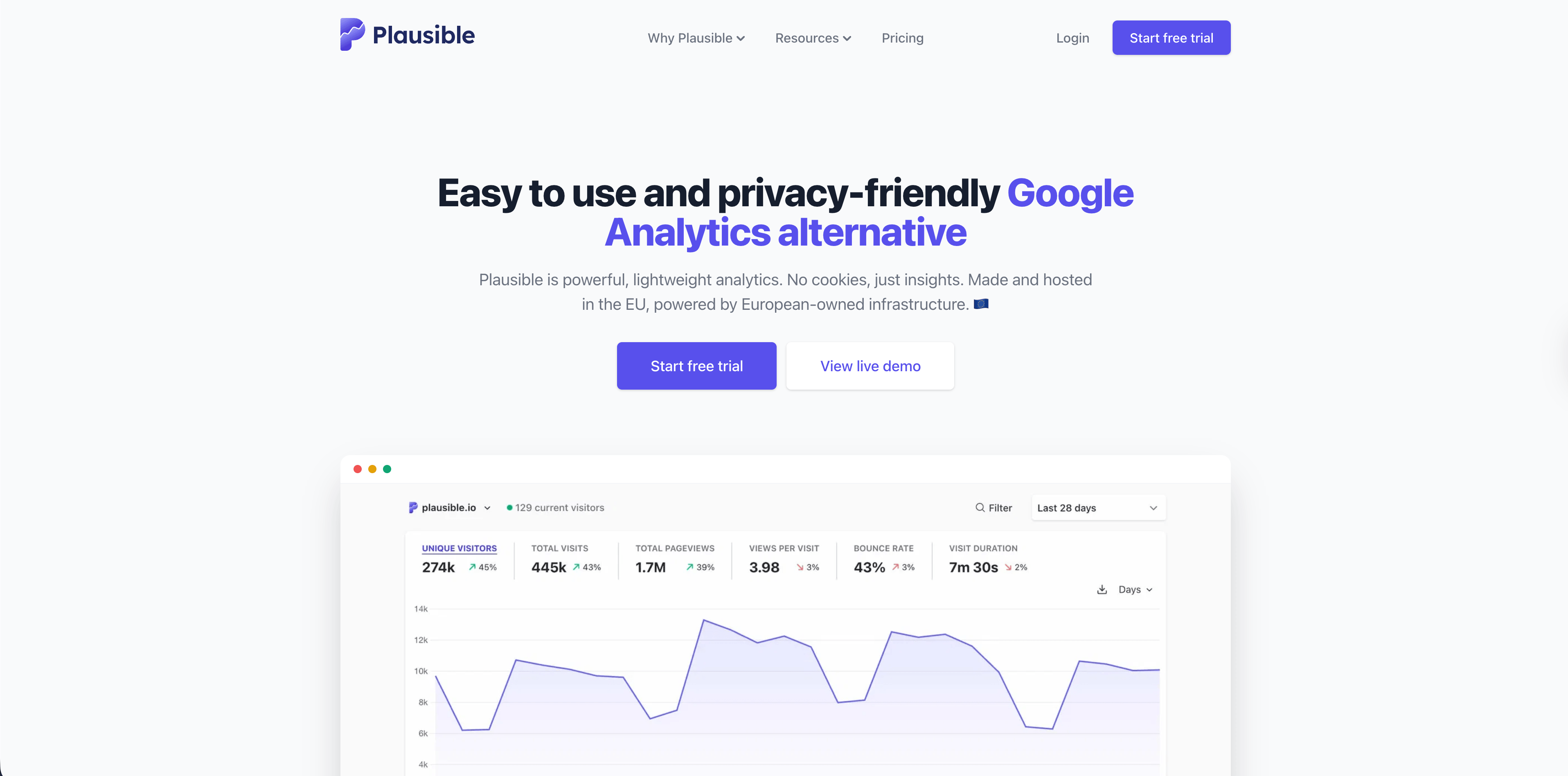
Plausible publishes an official Webflow integration guide. It uses Webflow's Custom Code area to add the Plausible script and can track form submissions through thank-you-page goals or custom events.
Plausible is a good fit when you want a simple privacy-friendly traffic dashboard, open-source transparency, and goal tracking without a broad product analytics suite. For Webflow users, the biggest implementation detail is that site-wide custom code is a paid Webflow feature, so your Webflow plan matters even if the analytics tool itself is simple.
Use Plausible when:
- You want a clean one-page website analytics dashboard.
- You prefer an open-source privacy analytics product.
- Goals and campaigns are enough for the site.
5. Fathom On Webflow
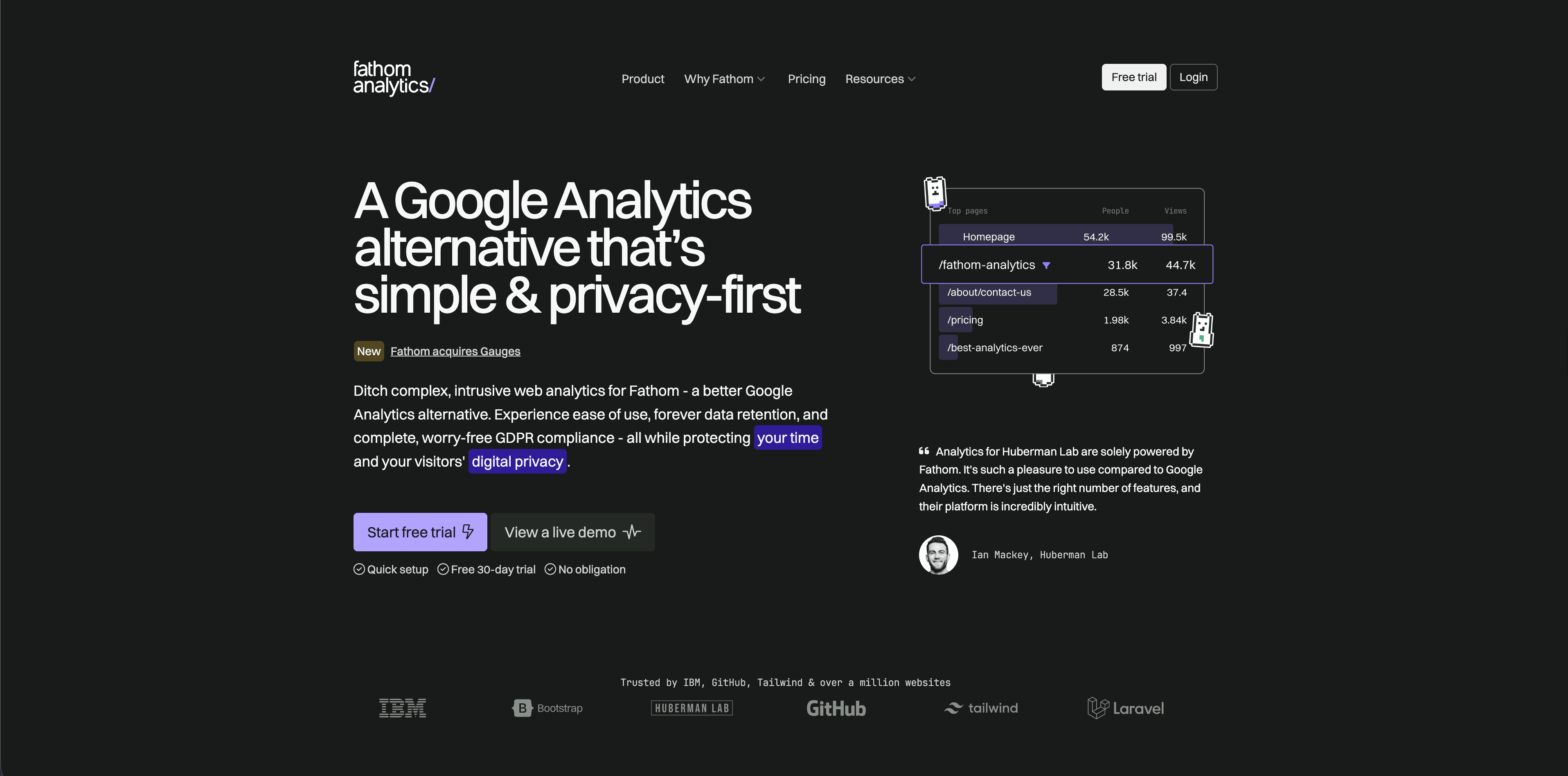
Fathom also has official Webflow integration documentation. Its Webflow guide focuses on adding Fathom to a Webflow site and tracking events for links or forms.
Fathom is strongest when you want hosted, privacy-focused analytics with minimal maintenance. It is less flexible than a full product analytics platform, but that restraint is often the point for Webflow marketing sites.
Flowsery
Start Free Trial
Real-time dashboard
Goal tracking
Cookie-free tracking
Use Fathom when:
- You want a polished hosted analytics product.
- You do not want to maintain a self-hosted analytics stack.
- Your reporting needs are mostly traffic, content, referrers, and events.
6. Simple Analytics On Webflow
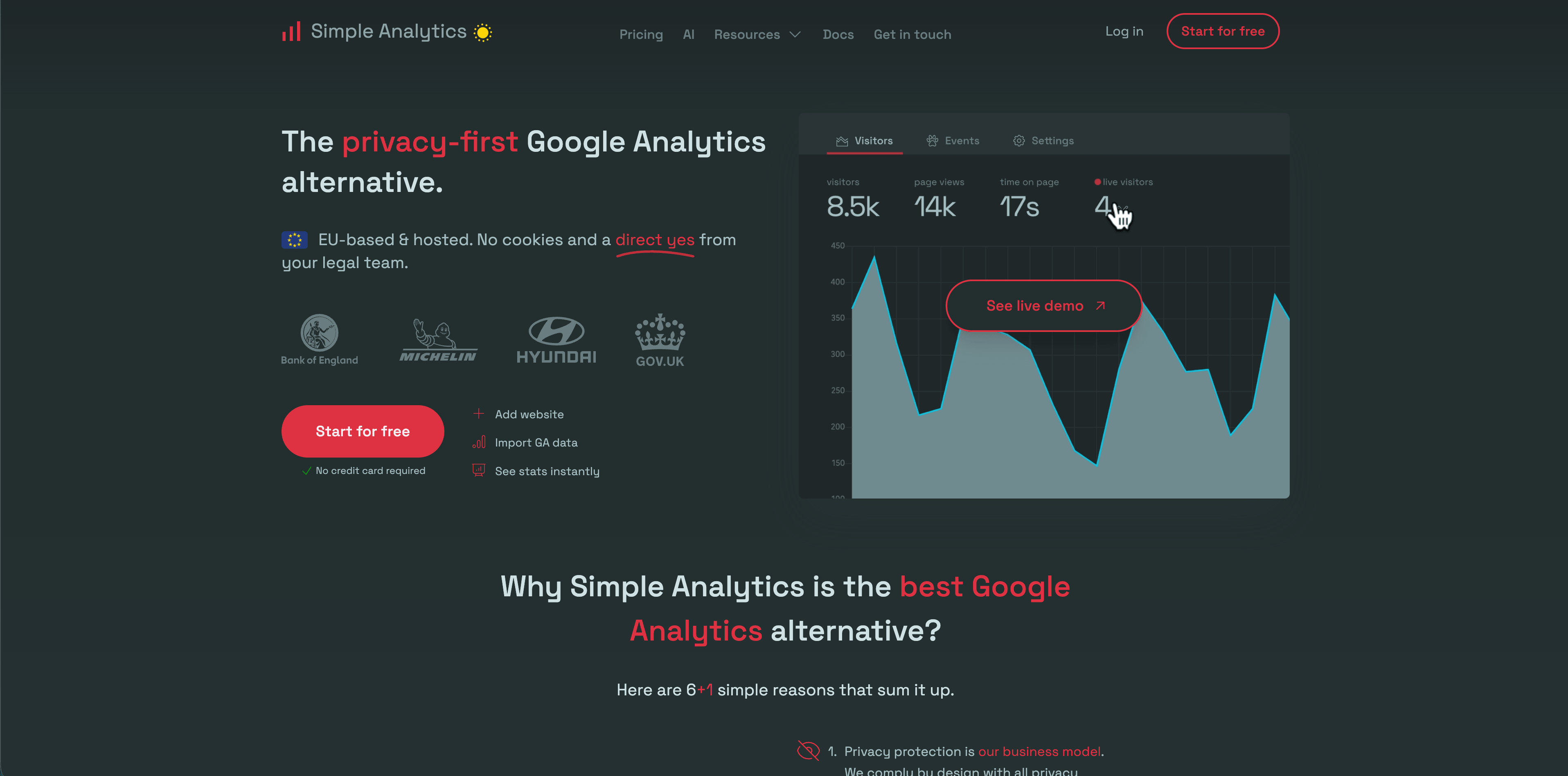
Simple Analytics documents installation paths for website platforms including Webflow. It is a strong fit for teams that want aggregate reporting, no cookies, and a privacy-first posture.
Simple Analytics is a better fit for clear website reporting than for deep product behavior analysis. For a Webflow brochure site, agency site, or content site, that can be exactly right.
Use Simple Analytics when:
- You want a minimal privacy-first dashboard.
- You do not need complex funnels or product cohorts.
- You want analytics that non-technical people can read quickly.
Is Webflow Analyze Enough?
Webflow Analyze can be enough when the team mainly wants to improve Webflow pages. It is strong for design feedback, page-level reporting, clickmaps, scroll context, goals, and audience filters inside the same tool where the site is edited.
It may not be enough when you need:
- Cross-site reporting across Webflow and non-Webflow properties.
- Revenue attribution tied to payment providers.
- A dashboard you can keep if you migrate away from Webflow.
- A privacy-first analytics setup that avoids a broad ad-tech stack.
- A simple client-facing dashboard outside the Webflow workspace.
- Product analytics across logged-in app behavior.
That is why many Webflow teams use a layered setup: Webflow Analyze for page editing feedback, Flowsery for privacy-first business reporting, and GA4 only when Google Ads or analyst workflows truly need it.
Recommended Setup By Webflow Site Type
| Webflow site type | Recommended analytics setup |
|---|---|
| SaaS landing page | Flowsery first, optionally Webflow Analyze for design feedback |
| Agency client site | Flowsery for reports, Webflow Analyze if client edits in Webflow |
| Portfolio or creator site | Flowsery or Simple Analytics |
| Content site or blog | Flowsery, Plausible, Fathom, or Simple Analytics |
| Google Ads-heavy lead gen site | Flowsery plus GA4 |
| In-Webflow design iteration team | Webflow Analyze plus Flowsery if revenue or client reporting matters |
| Ecommerce funnel | Flowsery for revenue context, GA4 if Google Ads/ecommerce reporting is required |
Bottom Line
Webflow does have analytics now, but the best setup depends on the job. Webflow Analyze is the native answer. Google Analytics is the Google ecosystem answer. Flowsery is the first option to evaluate when you want privacy-first Webflow analytics with funnels, revenue attribution, live traffic, API access, and a dashboard that does not depend on staying inside Webflow forever.
Start tracking your Webflow site with Flowsery and use the native Webflow tools where they help your design workflow.
Sources Checked
- Flowsery pricing
- Flowsery web analytics platform
- Webflow Analyze product page
- Intro to Webflow Analyze
- Webflow Analyze setup guide
- Webflow Analyze pricing and usage update
- Webflow Google Analytics setup
- Google Analytics setup documentation
- Plausible Webflow integration
- Fathom Webflow integration
- Simple Analytics platform installation docs
Was this article helpful?
Let us know what you think!
Before you go...
Flowsery
Revenue-first analytics for your website
Track every visitor, source, and conversion in real time. Simple, powerful, and fully GDPR compliant.
Real-time dashboard
Goal tracking
Cookie-free tracking
Related Articles
How to choose the right analytics alternative in 2026
Compare each analytics alternative by privacy model, pricing, dashboard depth, revenue attribution, product analytics fit, and dashboard screenshots.
Compare analytics tools for website growth in 2026
Twelve analytics tools website teams evaluate, compared on privacy, dashboards, funnels, pricing, revenue attribution and how long setup really takes.
How to compare the best tools for website analysis
The best tools website analysis teams trust, compared on privacy, dashboards, funnels, revenue attribution, pricing and how long setup really takes.